How to Add Your Business to Google Maps and Search (Free, Step by Step)
Check whether you're already listed, set up each field the way Google expects, and get verified, with a copy-paste setup worksheet and an eligibility table.
Written by Bharat BaghelSenior WriterBharat BaghelSenior Writer · Google Business Profile & local SEOSEO Manager with 4+ years of SEO inside software companies, including ControlHippo and SoftwareSuggest. Writes our Google Business Profile, local SEO and website guides.Read full bio →LinkedInEdited by BuzzTech Labs Editorial TeamEditorBuzzTech Labs Editorial TeamEditor · Local SEO researchChecks every BuzzTech Labs guide against Google's own help pages and policies before it goes live.Read full bio →Contact us11 min read
To add your business to Google, go to business.google.com/add, sign in with a Google account, select Add your business to Google and enter your name, category, location and contact details. Then verify the profile using the method Google offers. It's free, and once verified, your business can appear on both Google Search and Google Maps. Before you start, search Google Maps for your business name. If a listing already exists, claim it instead of creating a second one.
The form itself takes about ten minutes. Getting it right takes a little more thought. The name you type, the category you pick and whether you show your address all affect whether you pass verification and which searches you show up for later. This guide walks through each step, with a setup worksheet you can fill in first and a table that tells you whether your type of business can be listed at all.
Step 1: Check whether you're already on Google
Search Google Maps for your business name and city, then for your phone number. Google often creates listings on its own from public information, and customers can add places too. So a business that has never touched Google may already have a profile.
kesar crumb bakery andheri
Kesar Crumb Bakery
Bakery · Andheri West, Mumbai
✓Claim this business
+ Add your business to Google
Illustration with a made-up business. If your listing exists, you'll see a "Claim this business" link. If not, you add a new one.
Select Claim this business, then Manage now, and verify
A message that someone else may manage it
It's already verified by another account
Select Request access. The owner has 3 days to respond
Two listings for your business
A duplicate exists
Claim the one with reviews, then deal with the other
The third case is common when a former employee, an old agency or a previous owner set up the profile. Google's guide to requesting ownership says the current owner gets an email and has 3 days to reply. If they don't, you may be able to claim it yourself. Our guide to duplicate listings and ownership requests covers what to do when that doesn't work.
Don't create a new profile just because claiming is slow. A second profile for the same location breaks Google's one-profile-per-location rule, splits your reviews and can get both listings in trouble. Claim or request the existing one.
Step 2: Make sure your business can be listed
Google lists businesses that make in-person contact with customers during their stated hours. That is the core rule on its eligibility and ownership guidelines page. If customers never meet you, you can't have a Business Profile, however real the business is.
Your situation
Can you be listed?
How to set it up
Shop, clinic, salon or office customers visit
Yes
Storefront: show your address
You visit customers (plumber, cleaner, mover)
Yes
Service-area business: hide your address, add service areas
Customers visit you and you also go to them
Yes
Hybrid: show address and add service areas
Home-based, clients come to your home
Yes
Storefront, only if you're happy showing the address
Home-based, you go to clients
Yes
Service-area business with the address hidden
Co-working desk
Only with signage, staff and customers received in your hours
Storefront at that address
Virtual office or P.O. box
No
Use a real address or set up as a service-area business
Online-only shop or brand
No
Focus on your website and other channels
Rental or for-sale property
No
The sales or leasing office can be listed
Seasonal business
Yes
Keep a permanent sign up year-round
Individual professionals, like a doctor who works inside a larger clinic, can usually have their own profile too. We cover how that works on our page for doctors and clinics.
Step 3: Fill in your setup worksheet first
Write your answers down before you open the form. It stops you from guessing under pressure, and it means your website, your sign and your Google profile all say exactly the same thing. Copy this worksheet into a note on your phone:
Field
Your answer
Rule to follow
Business name
__________
Exactly as on your sign. No cities, services or taglines
Primary category
__________
The single most specific category for what you are
Extra categories
__________
Only true ones. Up to 9 more
Customers visit you?
Yes / No
Yes: show address. No: hide it
Address
__________
Include shop, suite or floor number. No P.O. box
Service areas
__________
Cities or postal codes, up to 20, roughly within a 2-hour drive
Use a business-owned Google account. Many owners lose access years later because the profile was created on a receptionist's or nephew's Gmail. Create something like [email protected], or use your work email, and keep the password with your business records.
Step 4: Add your business, screen by screen
With your worksheet ready, the form is quick. Here's the flow on a computer. On a phone, open the same address in your browser and the steps match.
1Business nameType your name. Pick from the list if Google suggests your business.Brightline Dental
2CategoryStart typing and choose from Google's list.Dentist
3LocationDo customers visit? Yes adds your address and map pin.Yes, add a location
4Service areasOnly if you go to customers. Add cities or postal codes.Pune, Pimpri-Chinchwad
5ContactPhone and website. Both optional, both worth adding.+91 98XXX XXXXX
6VerifyChoose from the methods Google offers you.Text, video or postcard
Illustration. Google changes the order and wording now and then, but these are the details it asks for.
Go to business.google.com/add and sign in with the account from your worksheet.
Enter your business name. If Google suggests a matching business, stop. That's an existing listing, so pick it and claim it instead.
Choose your primary category. Type and pick from the list. You can add the extra ones after verification.
Answer whether customers visit. Say yes for a storefront and enter your address, then drag the pin to your actual door if it's off. Say no if you only go to customers.
Add service areas if you travel to customers. Google doesn't allow a radius, so list real towns or postal codes.
Add your phone and website. Use the number on your sign and website, not a call center line.
Choose a verification method and complete it. Google decides the options. Some businesses get a text code, others get a video or postcard.
Step 5: Pick the right category
Your primary category is the strongest hint you give Google about what searches you should appear for. Pick the most specific one that completes the sentence "This business is a...", not "This business has a...". Google's guidelines use that exact test.
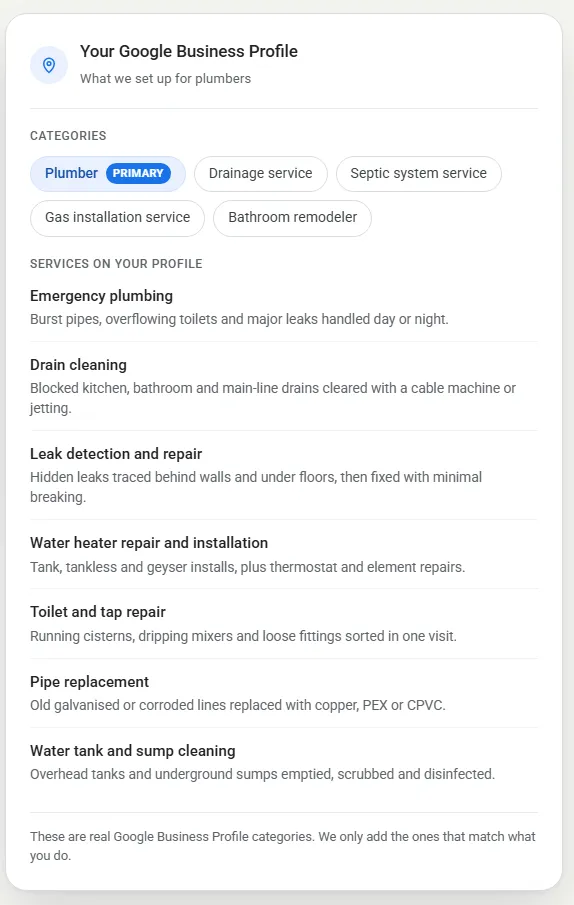
From our plumbers page: one specific primary category, a few true secondary ones, then services that describe the actual jobs.
A few examples of the difference specific categories make:
A teeth-straightening clinic should consider "Orthodontist", not just "Dentist", if that is what it mainly does.
A bakery that also sells coffee is a "Bakery" first, with "Coffee shop" as an extra category if people really come in for coffee.
A salon that only cuts men's hair is a "Barber shop", not "Beauty salon".
Don't add categories for things you don't do, and don't use them as keywords. Listing "Emergency dentist" when you close at 6 pm is a fast way to disappoint callers. Our Google Business Profile category list covers the best primary and extra categories for 32 kinds of local business.
Step 6: Get the address right
Show your address only if customers come to you. If they don't, hide it and add service areas. Getting this wrong is one of the most common reasons new profiles fail verification or get suspended later.
Google's service area guidelines allow up to 20 areas, set by city, postal code or another area, not a radius. They also say the area shouldn't stretch beyond about two hours of driving from your base. A pest control company in Dallas can list Dallas, Plano, Irving and Garland. A cleaning service in Bengaluru can list Indiranagar, Koramangala and HSR Layout, or their pin codes.
For storefronts, enter the address exactly as your post arrives, with unit and floor numbers. If your area uses landmarks in addresses, add the one your customers use in the address line only if it's part of your postal address. Then check the map pin. If it lands on the wrong building, move it to your front door. A pin on the wrong street sends people to the wrong place and can confuse a video verification.
Step 7: Verify, then wait for Google's review
You can't manage a profile properly until it's verified. Google's page on verifying your business lists phone or text, email, a live video call, a recorded video and a postcard, and says Google chooses which ones you see. Reviews take up to 5 business days after you complete the steps.
A few quick rules keep this simple:
Don't edit your name, address or category while verification is pending.
If you get a postcard, don't request a second one. It cancels the first.
For a video, film one continuous take that shows the street, your sign and a staff-only area.
Never share your code with anyone. Google never asks for it.
If you're offered a video or verification fails, read our full guide on how to get verified on Google. It includes a shot list and a table of the reasons verification fails, with a fix for each.
How long until you show up on Google?
After verification, your profile usually shows for searches of your exact business name first. Showing up for searches like "plumber near me" or "best cafe in Indiranagar" takes longer, and depends on how close the searcher is, how relevant your profile looks and how well known your business is.
Those three factors, relevance, distance and prominence, are how Google describes local ranking on its page on improving your local ranking. You can't change distance. You can change the other two with a complete profile, real photos, reviews and regular updates. A new listing with one category and no photos tends to sit low even when it's correctly verified.
Seven mistakes that hold new listings back
Keywords in the name. "Raj Plumbing Best Plumber Near Me" breaks Google's name rules and risks suspension. Use your real name.
A virtual office address. It isn't eligible, and it's a common reason for failed verification.
Creating a duplicate. Adding a new profile when one already exists splits reviews and can get both listings in trouble.
The wrong Google account. A staff member's personal account leaves you locked out when they leave.
Showing a home address by mistake. If customers don't visit, hide it. If they do, show it.
A website link that redirects. Google's guidelines say not to use links that send people elsewhere, such as straight to a social page. Link your own site.
Stopping after verification. The profile Google creates from the form is the bare minimum. It needs photos, services, hours and reviews to compete.
What to do in your first 30 days
The first month sets the tone. Here is a simple plan, in order, so a new profile looks active and trustworthy from the start.
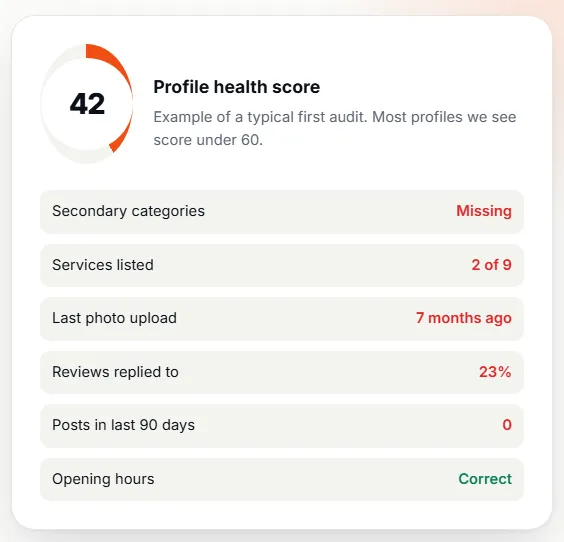
An example from our free audit. Profiles like this are listed but held back by missing categories, services, photos and posts.
Week 1: Add extra categories, every service with a short description, your hours and holiday hours, your booking or WhatsApp link, and a 750-character description written for customers.
Week 2: Upload real photos: your sign, entrance, inside, team and work. Ten good ones beat fifty blurry ones.
Week 3: Ask your recent happy customers for a review, by text, WhatsApp or a QR card at the counter. Reply to every review.
Week 4: Publish your first post, such as an offer or a new service, and add the questions customers often ask.
If you don't have a website yet, your profile will carry most of the load. A simple, fast site that matches your profile helps both verification and trust. See our website design for local businesses.
Prefer to have it done for you?
If you'd rather spend the time running your business, we do this every day. We check for existing and duplicate listings, create or claim your profile, set every field by Google's rules, guide you through verification, and then keep the profile active with posts, photos and review replies. That's what our Google Business Profile management service covers, with setup included, no long contracts, and you stay the owner of your profile. We work with cafes and bakeries, dentists, cleaning services and many more. Compare plans on our plans page and ask for your best price, or start with a free profile audit.
Google Business Profile questions, answered
Is it free to add my business to Google?
Yes. Creating a Google Business Profile, verifying it and showing on Google Search and Maps costs nothing. You only need a Google account. Google Ads are a separate, paid product and aren't needed to appear in the regular map results. Be wary of anyone charging a fee just to list you.
How long does it take for my business to show up on Google?
Once you finish verification, Google says reviews take up to 5 business days, and sometimes longer. After that, the profile usually starts appearing for searches of your business name first. Showing up for broader searches like "dentist near me" takes longer and depends on reviews, photos and how complete your profile is.
Can I add my business to Google without an address?
Yes, if you serve customers at their location. Set up as a service-area business, hide your address and list up to 20 cities or postal codes you cover. You still enter an address privately for verification. If customers visit you, though, you must show the address.
Can I list a home-based business on Google Maps?
Yes, as long as you meet customers in person. If clients come to your home, you can show the address. If you go to them, hide it and add service areas. Online-only businesses with no in-person contact aren't eligible for a Business Profile.
Do I need a website to add my business to Google?
No. The website field is optional, and you can create and verify a profile without one. A website helps, though. Verifying it in Google Search Console can make instant verification possible, and a site with the same name, address and phone backs up your profile.
Why can't I add my business to Google Maps?
Common reasons are that a listing already exists, so Google asks you to claim it, the address is a P.O. box or virtual office, the business is online-only, or you're signed in with an account that already manages a suspended profile. Search Maps for your name and phone number first.
How do I add my business to Google before it opens?
You can add an opening date up to one year ahead, and Google shows it on the profile 90 days before that date. Verification usually needs your sign, premises and phone to be ready, so most owners create the profile close to opening and verify once the sign is up.
Senior Writer · Google Business Profile & local SEO
Bharat Baghel is an SEO Manager with 4+ years of SEO and marketing inside software companies. He led SEO and content for the ControlHippo blog and spent close to three years on SEO at SoftwareSuggest, building pages at scale. At BuzzTech Labs he writes about Google Business Profile, local SEO and websites, and what actually brings a local business more calls.
Edited by the BuzzTech Labs editorial team before publishing. We only cite what we can verify.
Google has thousands of categories but publishes no list. Here are the real category names we recommend for 32 types of local business, with the rule Google uses to judge them and the traps that cost rankings.
A plain-English walkthrough of every field that matters on your Google Business Profile, in the order we set them up, plus the weekly routine that keeps a profile ranking.
Searching your own business name tells you almost nothing. Here are five free ways to see where you really rank on Google Maps, how rank grids work, and a simple log to track it every month.
Google names three things: relevance, distance and prominence. Experts break those into 187 factors. Here is which ones move your map rankings, which ones hurt, and which are a waste of your week.
· 11 min read
The BuzzTech Labs Brief
Local growth notes, once a week.
One practical email on Google Maps, reviews and websites for local businesses. No spam, unsubscribe any time.